User Manual
1. Opening documents • 2. Reading • 3. Tabs • 4. The menu bar • 5. Keyboard and screen readers • 6. Languages • 7. The sidebar • 8. Annotations • 9. Pages • 10. Forms • 11. Editing text • 12. Signing • 13. Printing • 14. Saving
1. Opening documents
You can also start GravesPDF with a file:
This is what makes “Open with” and file associations work.
2. Reading
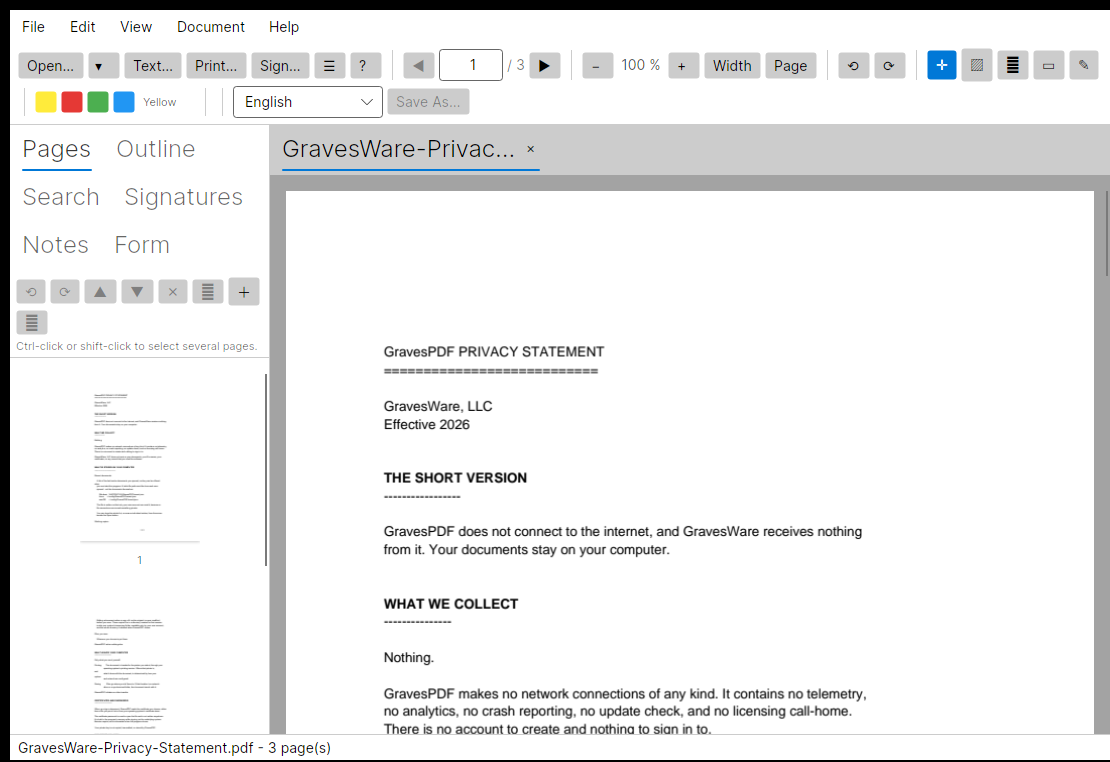
The document scrolls continuously. Pages are drawn as they come into view and released as they leave, so a thousand-page file opens as quickly as a one-page one.
3. Tabs
Every document you open gets its own tab. Opening a file that is already open brings its tab to the front rather than loading a second copy of it, so two tabs can never disagree about the same file.
Each tab keeps its own place: switch away, come back, and you are where you left off. Closing a tab with unsaved changes asks first, because edits live in a working copy until you save them.
With nothing open, the window shows the documents you opened recently. They are also under File › Open Recent at any time.
4. The menu bar
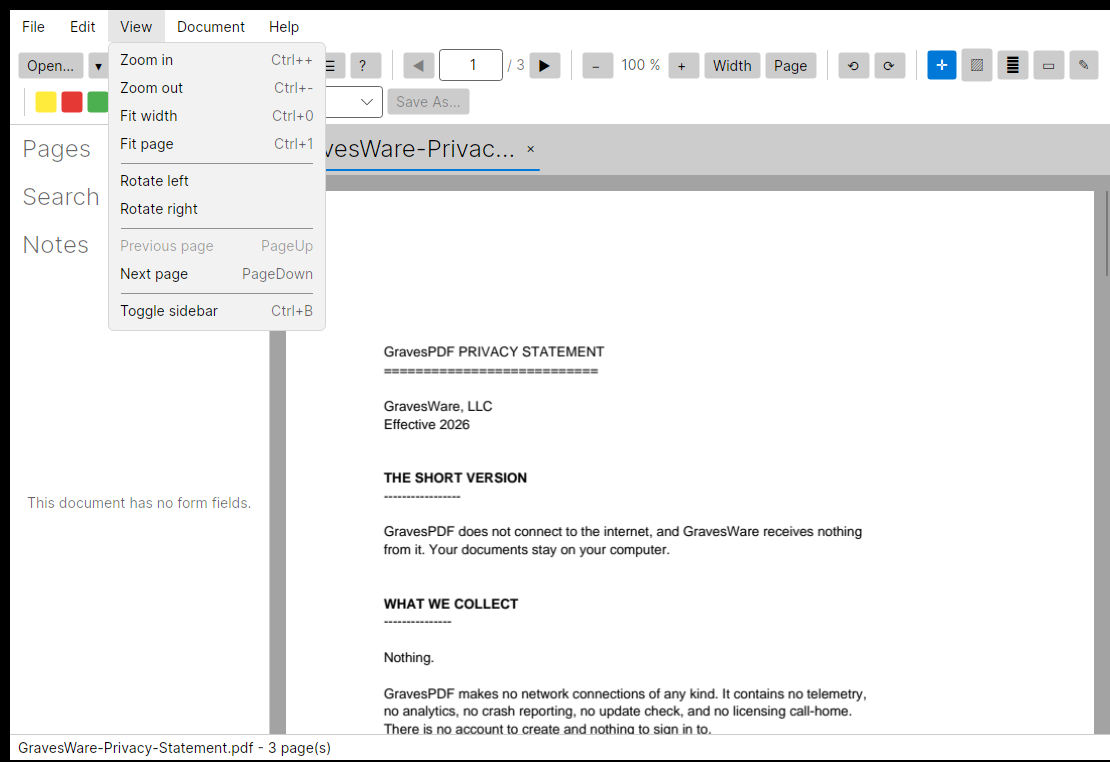
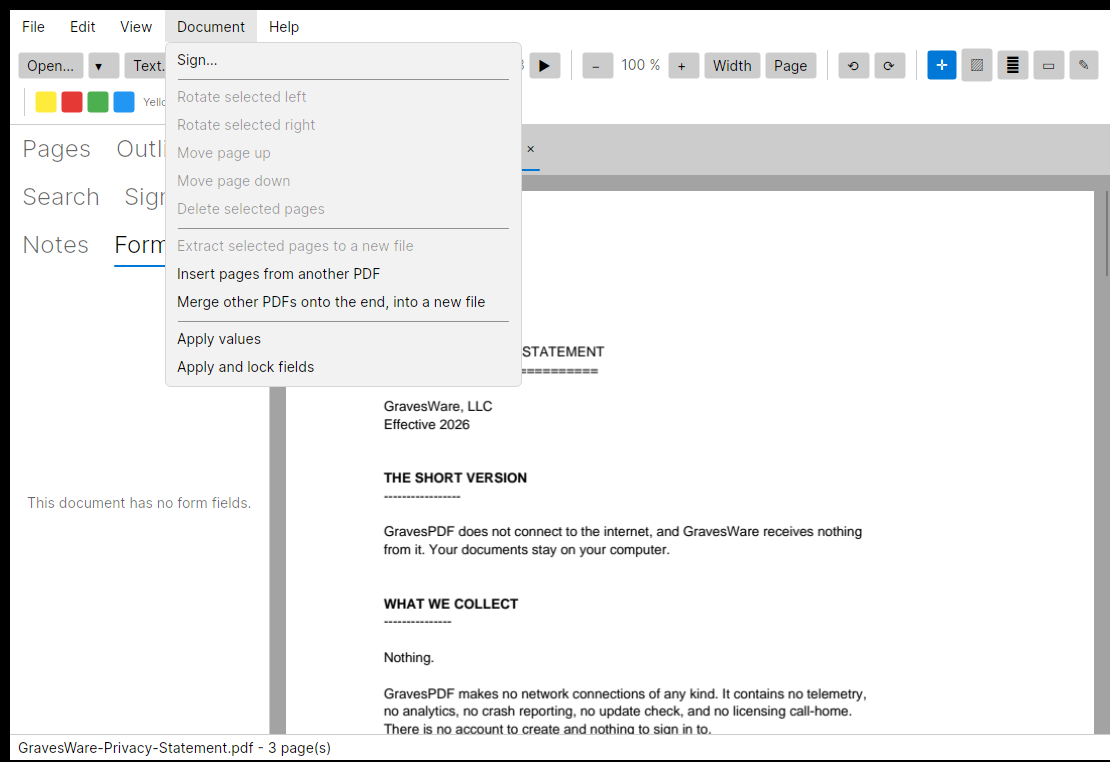
Everything in the menus is also on the toolbar. The menus are there so you can find a thing you have not used before without hunting for its symbol.
Alt+F, Alt+E, Alt+V, Alt+D and Alt+H open the menus; the arrow keys move through them.
5. Keyboard and screen readers
Everything in GravesPDF can be reached from the keyboard. Tab moves between controls, Space or Enter activates the one you are on, and every control tells a screen reader what it is, including the buttons that show only a symbol.
6. Languages
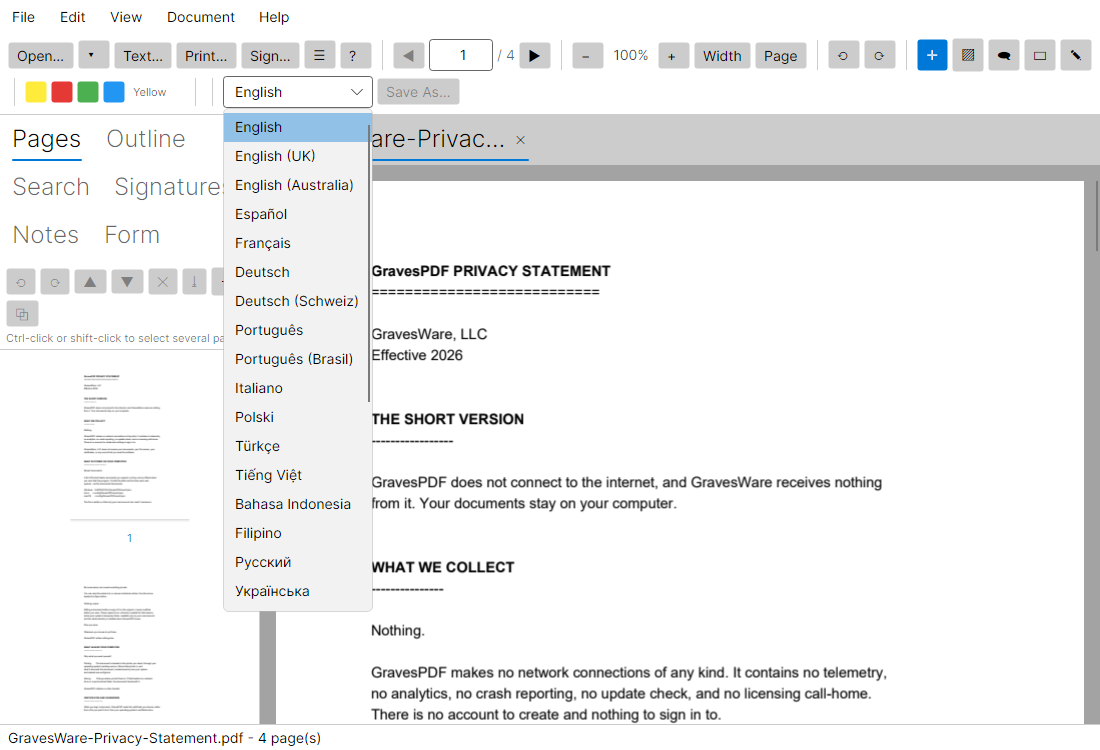
GravesPDF is translated into 55 languages, listed under Language in the toolbar, each written in its own script. The fonts for every one of them are built into the application, so the translations read correctly on a machine that has no fonts of its own for that script.
Arabic, Persian, Urdu, Sindhi and Uyghur turn the whole interface right to left. The document itself is never mirrored: a page is shown the way its author laid it out.
Changing the language takes effect the next time GravesPDF starts.
7. The sidebar
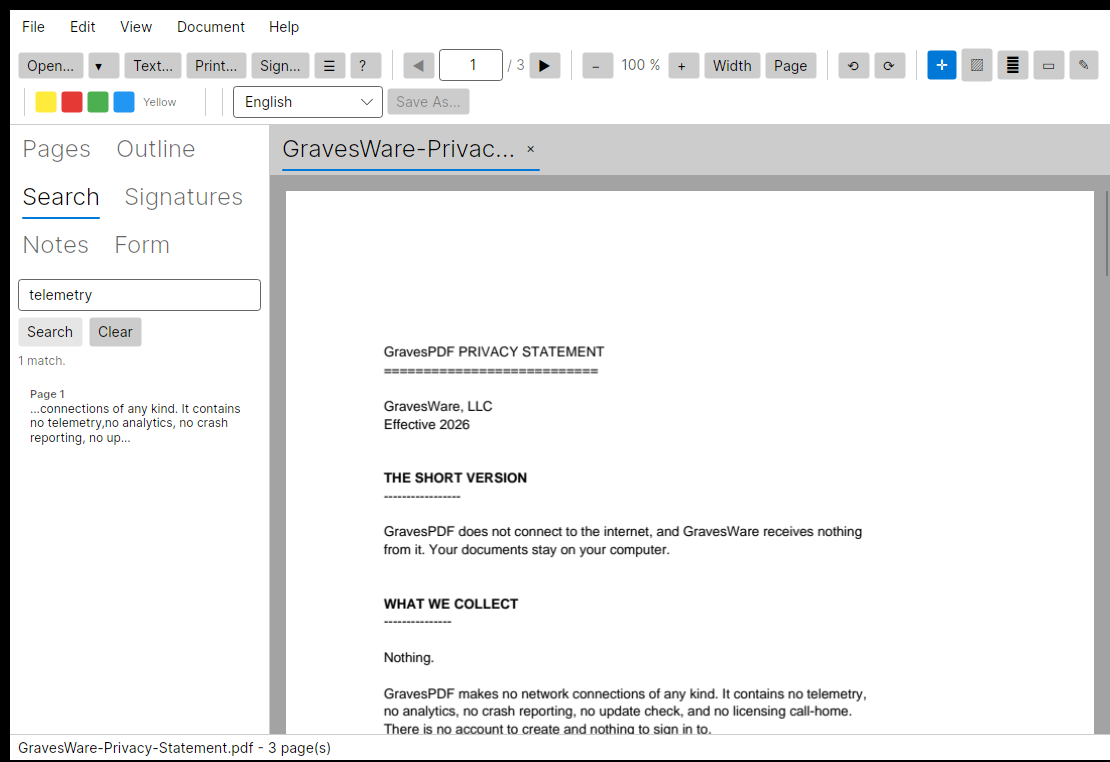
The list button in the toolbar hides and shows the sidebar.
8. Annotations
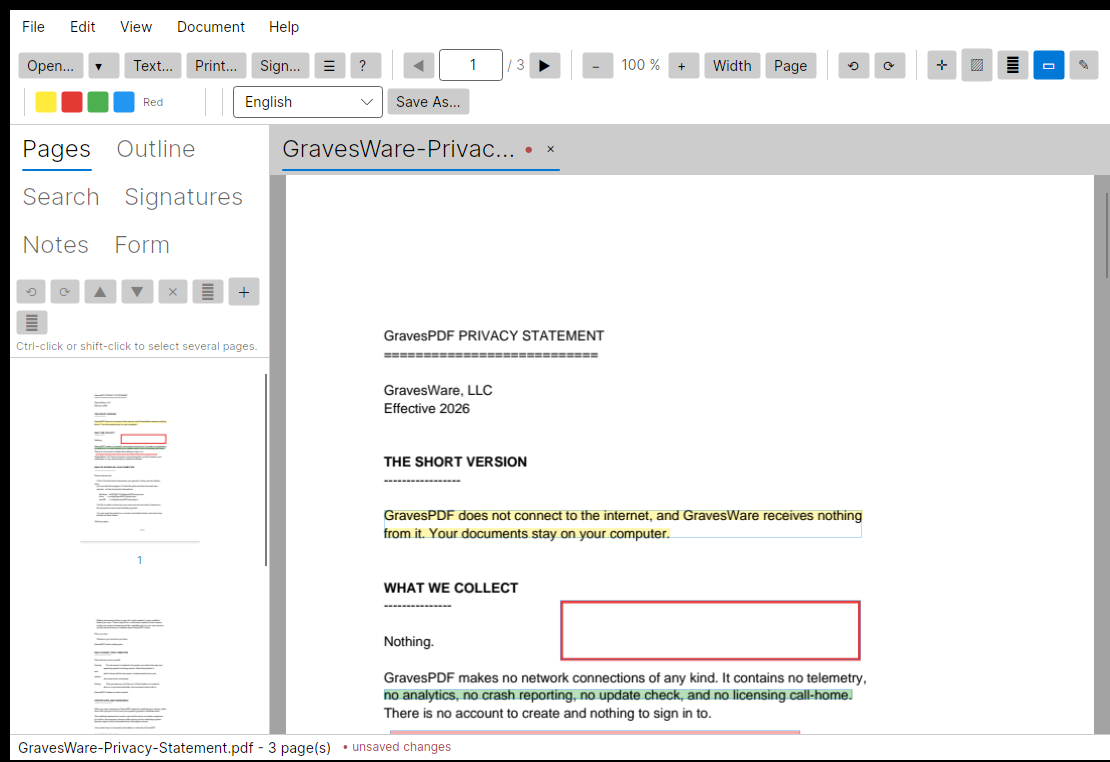
Pick a tool in the toolbar, choose a colour, then work on the page:
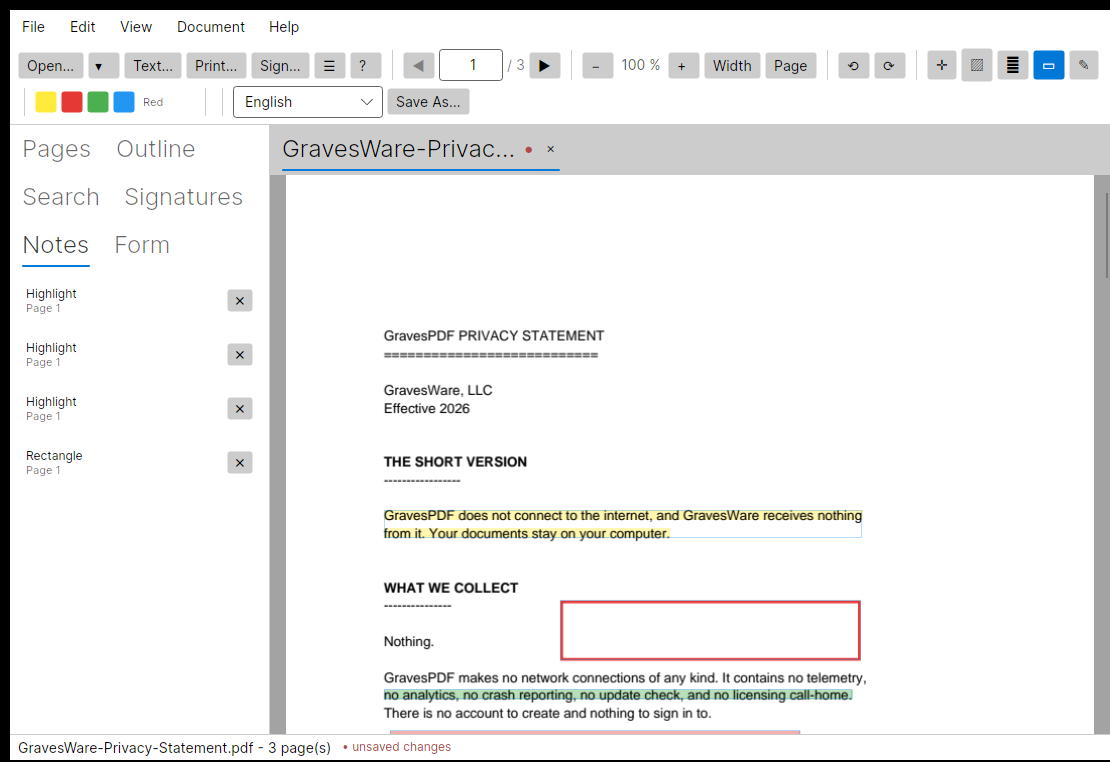
With no tool selected (the cross-arrows button), click an annotation to select it. Drag it to move it, or drag a corner handle to resize it. Every annotation is faintly outlined so you can see what can be grabbed.
Selecting an annotation also opens an editor in the Notes panel, where you can change its text or colour. The X beside each entry deletes it.
9. Pages
Select thumbnails in the Pages panel — ctrl-click or shift-click for several — then use the buttons above the list:
10. Forms
The Form panel lists a document’s fillable fields. Type into them, tick checkboxes, choose from dropdowns, then:
11. Editing text
“Text...” finds and replaces text that is already on the page.
Press Find first. It reports how many matches it can change and, where it cannot, why. Two limits come from how PDF works rather than from GravesPDF:
- Nothing reflows. A page holds positioned text, not paragraphs, so a longer replacement will overrun whatever follows it.
- Some documents use fonts that store glyph numbers rather than letters, or embed only the characters the document already used. Text in those cannot be re-typed, and GravesPDF will tell you rather than produce blanks.
12. Signing
“Sign...” signs the document with a certificate, either from a PFX/P12 file or from your operating system’s certificate store.
You can add a reason and a location, and place a visible signature block on any page by setting its position and size in points from the page’s top-left corner (a US Letter page is 612 by 792 points). Signing writes a new file; the original is untouched.
The Signatures panel checks every signature in a document and reports two things separately: whether the document was altered after signing, and whether the signature covers the whole file. A signature can be valid over part of a file while the rest was changed afterwards.
GravesPDF does not check whether a signing certificate is trusted or has been revoked. A signature reported as valid means the bytes are intact, not that the signer is who they claim to be.
13. Printing
“Print...” offers your installed printers, the number of copies, and whether to print everything, the current page, or a range such as 1-3, 7, 12.
Printing uses whatever you have already edited but not yet saved.
14. Saving
Edits do not touch the file on disk. They accumulate in a working copy, and the status bar shows “unsaved changes” while any are pending. “Save As...” writes them to a file you choose.
This means the document you opened is never modified, and a failed edit cannot damage it.