User Manual
1. About this manual • 2. What GravesZIP is • 3. Formats • 4. Opening a password-protected message • 5. Encryption • 6. Passphrases • 7. Encryption is not a signature • 8. Extracting safely • 9. Verifying an archive • 10. The interface • 11. Languages • 12. Accessibility • 13. Support
1. About this manual
This manual describes GravesZIP 1.0: the formats it handles, how its encryption behaves, what it protects and what it does not, and how to use every part of the interface. Nothing in it describes a feature that does not work; what is planned but not yet here is listed as such at the end of The interface.
2. What GravesZIP is
An archive manager: it packs files into archives, unpacks them again, and can encrypt what it packs.
Compression and encryption are done by SharpZipLib, a long-established open source library, rather than reimplemented here. Archives GravesZIP creates are ordinary ZIP files: an unencrypted one opens in anything, including the archive support built into Windows and macOS. An encrypted one opens in any program that understands ZIP’s AES-256 encryption — 7-Zip, WinZip and others. Some built-in ZIP tools, including older versions of Windows’ own, do not understand AES and cannot open an encrypted archive from any program; use GravesZIP or one of those.
It makes no network connections. See the Privacy Statement.
3. Formats
This release handles ZIP.
That is the whole list, and it is deliberately short. ZIP is what GravesMail’s password-protected messages arrive as, it is what every other archiver can read, and doing one format properly is worth more than doing several partially. Other formats will be added; until they are, this manual will not claim them.
7z, RAR, tar and the rest are not supported yet. GravesZIP does not include 7-Zip and does not require it to be installed.
4. Opening a password-protected message
A password-protected message from GravesMail arrives as an attachment called protected-message.zip. Open it with GravesZIP and enter the password the sender gave you separately — by phone or text, never in the email itself.
Inside you will find:
The attachments are deliberately renamed. A ZIP encrypts what is inside each file but leaves the list of names readable to anyone holding the archive, so a file called “layoff-list.xlsx” would announce itself before anyone typed the password. message.html carries the real names.
Nothing about opening one of these reaches the network, and neither GravesZIP nor GravesWare ever sees the password.
5. Encryption
A passphrase on a ZIP encrypts it with AES-256.
ZIP supports two ciphers, and one of them is broken. The original, ZipCrypto, falls to a known-plaintext attack in seconds on ordinary hardware, and it is what most tools — 7-Zip included — apply by default when you set a ZIP password. GravesZIP never uses it. There is no setting for it, because there is no circumstance in which it is the right answer.
What encryption does not cover
A ZIP cannot encrypt its own file listing. The names, sizes and timestamps of everything inside stay readable to anyone holding the archive, even though the contents do not. This is a limit of the format, not of GravesZIP, and no ZIP tool can do better.
If the names themselves are sensitive, rename the files before archiving them — which is exactly what GravesMail does when it writes attachment-01 instead of the real name.
The archive file also has its own name, size and modification date, none of which are encrypted. An archive called “resignation-letter.zip” has already said too much.
GravesZIP will not pretend otherwise. If you ask it to create an encrypted ZIP with the file listing hidden, it refuses rather than quietly writing a readable one.
6. Passphrases
Not by you, not by GravesWare, not by anyone. There is no backdoor, no recovery key and no reset. If you lose it, the archive is gone. This is what the encryption is for.
Before you delete the only copy of something because it is now in an encrypted archive: don’t.
Choosing one
The passphrase is the whole of the security. AES-256 is not the weak point and never will be; a guessable passphrase is.
Length beats complexity. Several unrelated words are stronger and easier to remember than a short string of substituted characters. “correct horse battery staple” resists guessing far better than “P@ssw0rd!”.
Do not reuse a passphrase you use anywhere else. An archive may outlive the account you borrowed the passphrase from, and may end up somewhere you did not intend.
Where GravesZIP keeps it
In memory, for the duration of the operation, and nowhere else. It is never written to disk. There is no “remember this password” option, by design.
See the Privacy Statement for the limits of that protection.
7. Encryption is not a signature
A passphrase proves that whoever made the archive knew it. It does not prove who they were, and it does not prove the archive you received is the one they sent — someone who knows the passphrase can make a different archive that opens with it just as well.
Encryption keeps contents from being read. Establishing who made something is a separate problem, and this program does not solve it.
8. Extracting safely
An archive from someone else is untrusted input.
GravesZIP will not write any file outside the folder you choose. Archives exist that store paths like “../../.ssh/authorized_keys”, so that a careless extractor writes wherever the path points. GravesZIP refuses these outright and stops the extraction rather than skipping the entry, so a hostile archive cannot partly land.
GravesZIP does not scan what it extracts for malware. That is your antivirus software’s job.
9. Verifying an archive
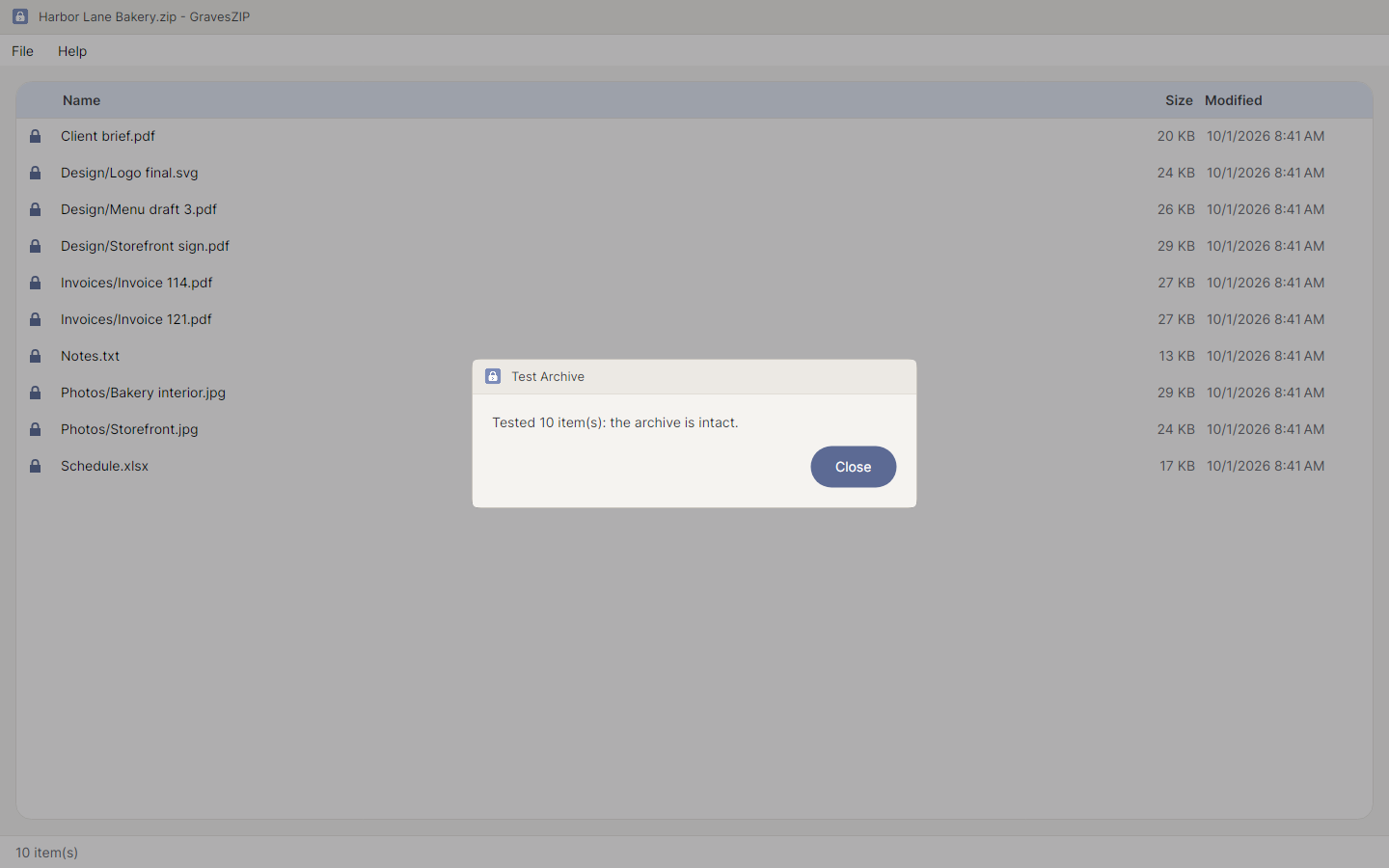
File > Test Archive decompresses every entry and checks it against the checksum stored with it, without writing anything to disk. It confirms the archive is intact and, for an encrypted archive, that the passphrase is correct. It asks for the passphrase if one is needed, and asks again if the one given is wrong.
The answer comes back in plain words: either every item was checked and the archive is intact, or at least one item does not match its checksum and the archive is damaged. A damaged archive may still give up some of its files with Extract Selected; get a fresh copy of it if you can.
It does not confirm where the archive came from or who made it.
10. The interface
The window
With no archive open, the window offers Open and New Archive as buttons. With one open, it lists what is inside: each item’s name and folder, its size, and when it was last changed, in alphabetical order. A padlock beside a row means that item’s contents are encrypted.
Every archive action is in the File menu, and the same actions are on the right-click menu: right-click anywhere in the window, or press Shift+F10 or the Menu key. Actions that need an open archive, or a selection, are greyed out until there is one.
Opening an archive
File > Open, or pass the archive’s path on the command line — which is what happens when GravesZIP is set as the program for .zip files, or when an archive is dropped on its icon. The Microsoft Store version offers itself for .zip files in Windows’ “Open with” list.
The listing appears immediately, even for an encrypted archive. This is not a security hole: a ZIP’s index is not encrypted, so the names, sizes and dates are readable to anyone holding the file.
Extracting
File > Extract All unpacks everything. File > Extract Selected unpacks only the rows you have selected — click one, Ctrl+click or Shift+click for more. Selecting a folder’s row brings everything inside that folder with it.
Either way, choose where to put the files. This is where an encrypted archive asks for its passphrase, because this is the first point at which one is actually needed. If the passphrase is wrong, GravesZIP says so and asks again rather than failing the whole operation.
Nothing is written until every entry’s destination has been checked. An archive containing a path that points outside the folder you chose is refused in full, so it cannot leave half its contents behind.
Testing
File > Test Archive. See Verifying an archive above.
Creating an archive
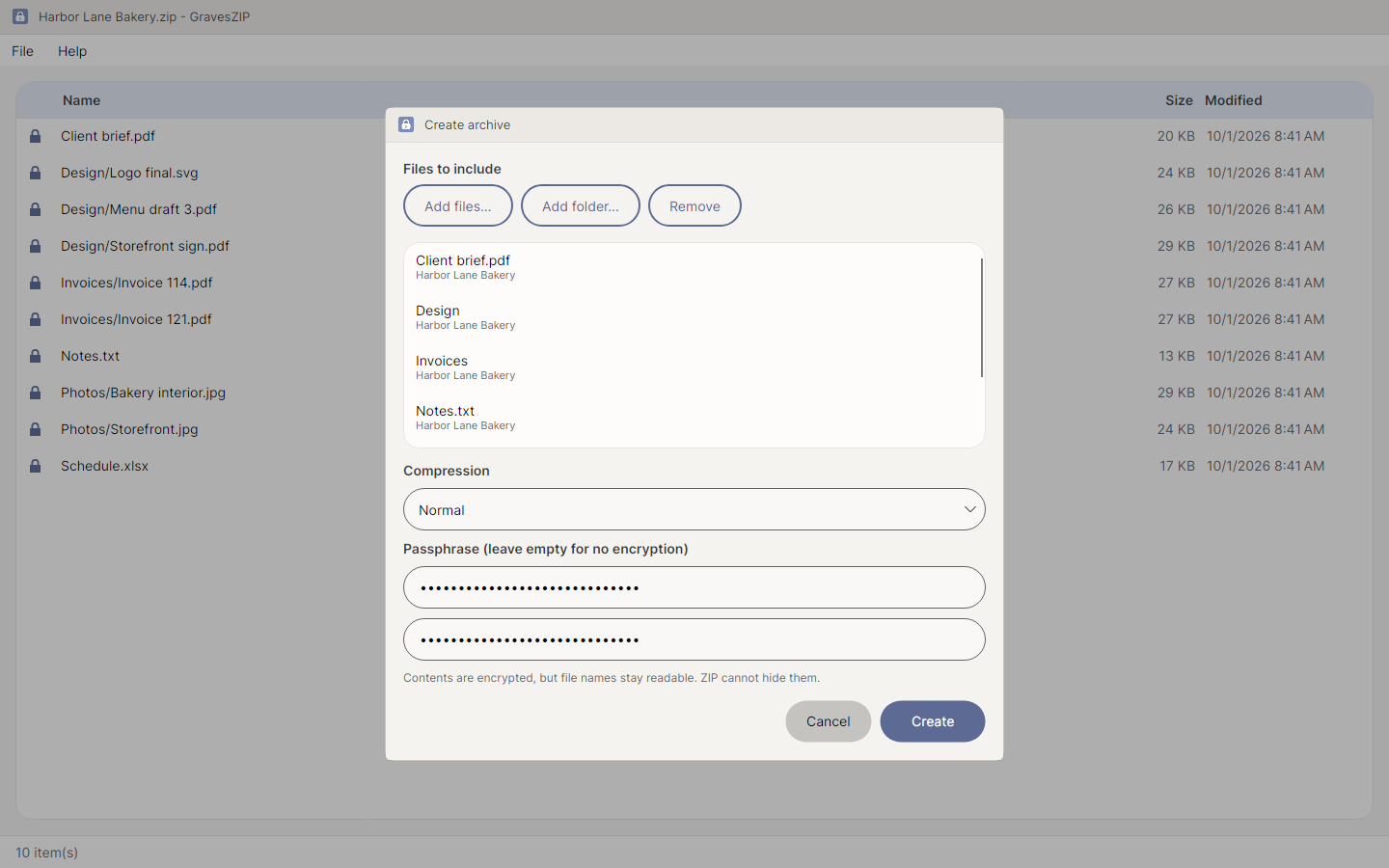
File > New Archive. Add the files and folders you want; each is listed by its name, with the folder it comes from beneath. Choose how hard to compress, and optionally set a passphrase. A folder is added whole, including everything beneath it, and keeps its own name inside the archive.
Compression offers three settings rather than a scale of nine:
Leave the passphrase empty for an ordinary archive. Type one and a second field appears to confirm it, because a passphrase cannot be recovered: a mistyped one makes the archive unreadable from the moment it is written, and nothing can tell you afterwards. A reminder that file names stay readable appears with it.
The archive opens as soon as it is written, so you can see what went into it rather than take it on trust.
Closing
File > Close Archive. The passphrase is erased from memory at that moment rather than lingering until the program exits.
Keyboard shortcuts
On Windows and Linux these use Ctrl; on a Mac, Command.
The menus themselves open with Alt and the underlined letter: Alt+F for File, Alt+H for Help.
What is not here yet
Opening a file from inside an archive without extracting it, adding files to an archive that already exists, and formats other than ZIP.
11. Languages
GravesZIP ships in 55 languages. Pick one from Help > Language; the list names each in its own script, and the current one is marked.
English (including UK and Australian spelling), Spanish (Spain and Latin America), French, German (including Swiss), Portuguese (European and Brazilian), Italian, Polish, Turkish, Vietnamese, Indonesian, Filipino, Dutch, Swedish, Finnish, Romanian, Croatian, Bosnian, Serbian (Latin and Cyrillic), Malay, Swahili, Yoruba, Igbo, Uzbek, Greek, Russian, Ukrainian, Simplified Chinese, Traditional Chinese (Hong Kong), Japanese, Korean, Thai, Hindi, Bengali, Tamil, Punjabi, Marathi, Nepali, Gujarati, Odia, Telugu, Kannada, Malayalam, Amharic, Arabic (including Egyptian), Persian, Urdu, Sindhi and Uyghur.
The choice takes effect when GravesZIP restarts. This is not a limitation being worked around: a window reads the language when it is built, and its left-to-right or right-to-left direction is fixed at that moment, so changing language under a window already on screen would leave it half-translated and facing the wrong way.
Before you have chosen, GravesZIP follows your operating system’s language.
Arabic, Persian, Urdu, Sindhi and Uyghur lay the interface out right to left. The contents of an archive do not mirror: a path like “docs/report.txt” keeps its direction in every language, because the separator means the left contains the right. File and folder names in any script still display correctly within the listing.
12. Accessibility
GravesZIP is built to be usable without sight.
Screen readers
Every control that can be operated carries a name a screen reader can announce, including the document panels in the About box. This is checked automatically on every build rather than by inspection — a control that cannot be announced fails the build.
Keyboard
The menus are reachable with Alt and the underlined letters, and moved through with the arrow keys. Dialogs close with Escape, and their default button responds to Enter.
The language menu uses radio-style entries rather than a drop-down list, because a screen reader announces which entry is checked. That is how a blind user hears which language is currently in force, rather than having to infer it.
Colour and contrast
GravesZIP wears the GravesWare colours, in a light and a dark version that follow your system’s light or dark setting. Every piece of text in them meets the WCAG AA contrast standard of 4.5 to 1, and an automated test fails the build if a change ever lowers one below it. Nothing is conveyed by colour alone: an encrypted row has its padlock, and a screen reader says “Encrypted”.
When your system is set to high contrast, GravesZIP sets its own colours aside and uses the plain system theme instead. You chose those colours because you need them, and an app that repaints itself over that choice has made itself harder to read.
Size
Buttons and text fields are at least 44 pixels tall, the comfortable minimum for a pointer, a finger or an unsteady hand. GravesZIP declares itself aware of display scaling on Windows, so it stays sharp at 150% or 200% rather than being stretched and blurred.
13. Support
GravesWare, LLC
support@gravesware.com
The address is also on the About page (Help > About GravesZIP), with an Email Support button that opens your own mail program with the address and your version already filled in. Nothing is sent until you send it.
Please say which version you are running — the About box shows it — and which operating system. For anything involving an encrypted archive, do not send the archive or the passphrase.