User Manual
GravesBook is a private, local-first checkbook register. Nothing you enter ever leaves this machine, and there is no bank connection in this version — everything is typed in by hand or imported from a spreadsheet you choose, the way a paper register works, with the bookkeeping automated.
1. Getting started • 2. Accounts • 3. The Register • 4. Categories • 5. Reconciling against a bank statement • 6. Scheduled transactions • 7. Calendar • 8. Importing from Excel • 9. Reports • 10. Exporting and printing • 11. Settings • 12. Backups • 13. Moving GravesBook to another machine • 14. If something goes wrong • 15. Languages and translations
1. Getting started
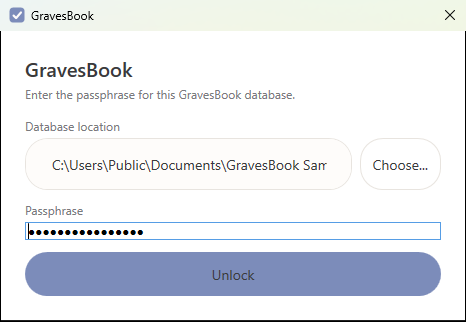
The first time you run GravesBook, you’ll be asked to choose a passphrase and a location for your database file. Write your passphrase down somewhere safe, like a password manager. GravesBook cannot recover a lost passphrase — there is no backdoor, and if you forget it, the data in that file is permanently unreadable. This is deliberate: it’s what makes the encryption real.
On later launches, you’ll be asked for that same passphrase to unlock your data. The unlock screen’s “Choose...” button lets you open a different database file — a copy you brought from another machine, for example (see Moving GravesBook to another machine below).
GravesBook remembers your window size, your register column widths, and how the register is sorted between launches.
2. Accounts
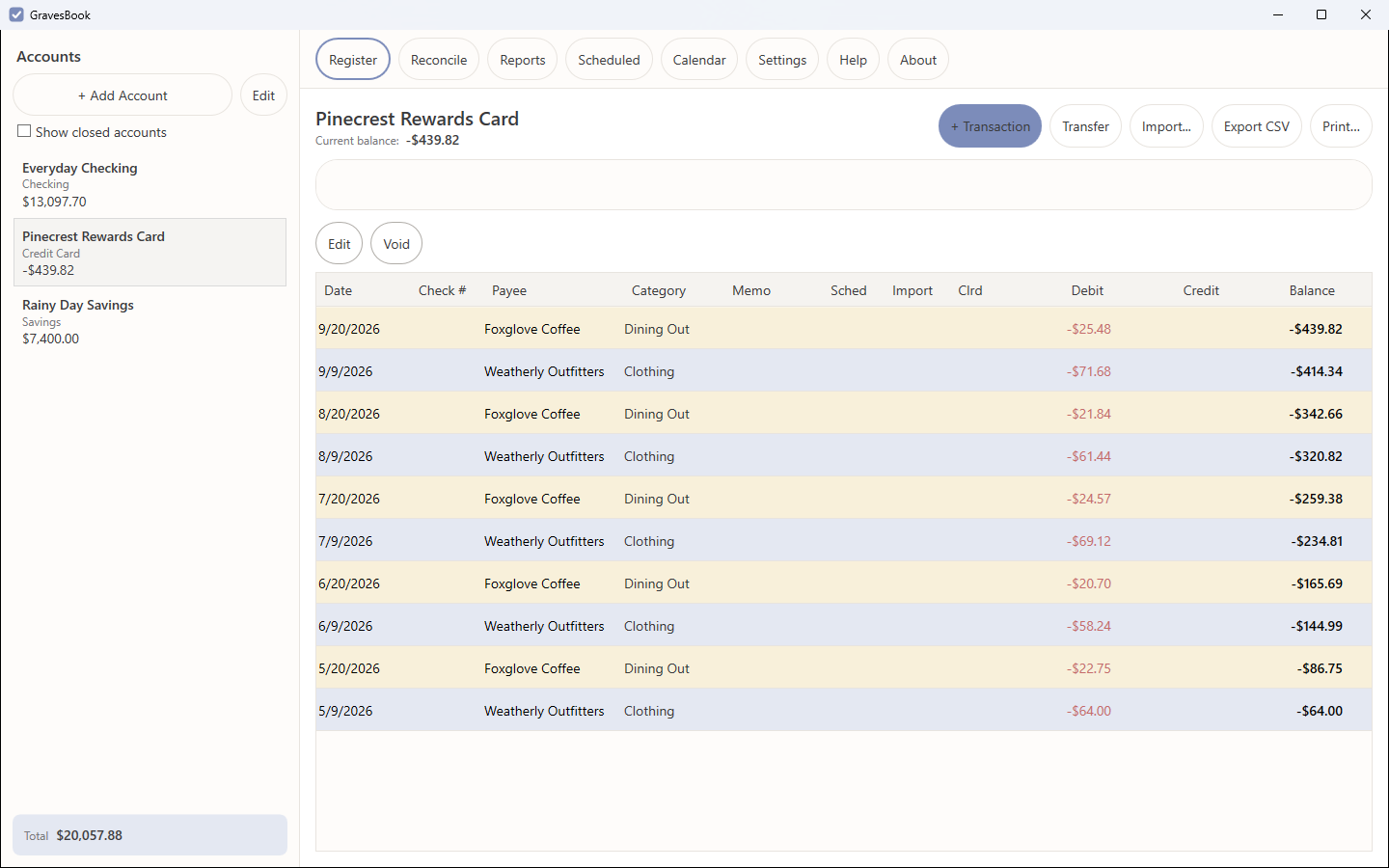
The left sidebar lists every account you’ve added — checking, savings, credit cards, cash, loans, or anything else — along with its current balance and a running total across all open accounts. Click “+ Add Account” to create one: give it a name, a type, an opening balance, and the date that balance was true as of. Everything after that opening balance is built from the transactions you enter.
Closed an account? Check “Closed” when editing it rather than deleting it, so its history stays intact. The “Show closed accounts” checkbox in the sidebar lets you bring closed accounts back into view when you need to look something up. Settings lets you pick a default account to open on startup.
3. The Register
Selecting an account opens its register. The columns follow a bank statement: Date, Check #, Payee, Category, Memo, three small indicator columns (Sched, Import, Clrd — see below), then Debit (money out, shown negative), Credit (money in), and Balance, the running balance after that row. You never edit the balance directly — it’s always derived from the opening balance plus every transaction before it in date order.
The register opens newest first. Click any column header to sort by it; click again to reverse. Your choice is remembered the next time you open GravesBook. When sorted by date in either direction, same-day transactions keep the order you entered them in, so the Balance column always reads correctly top to bottom.
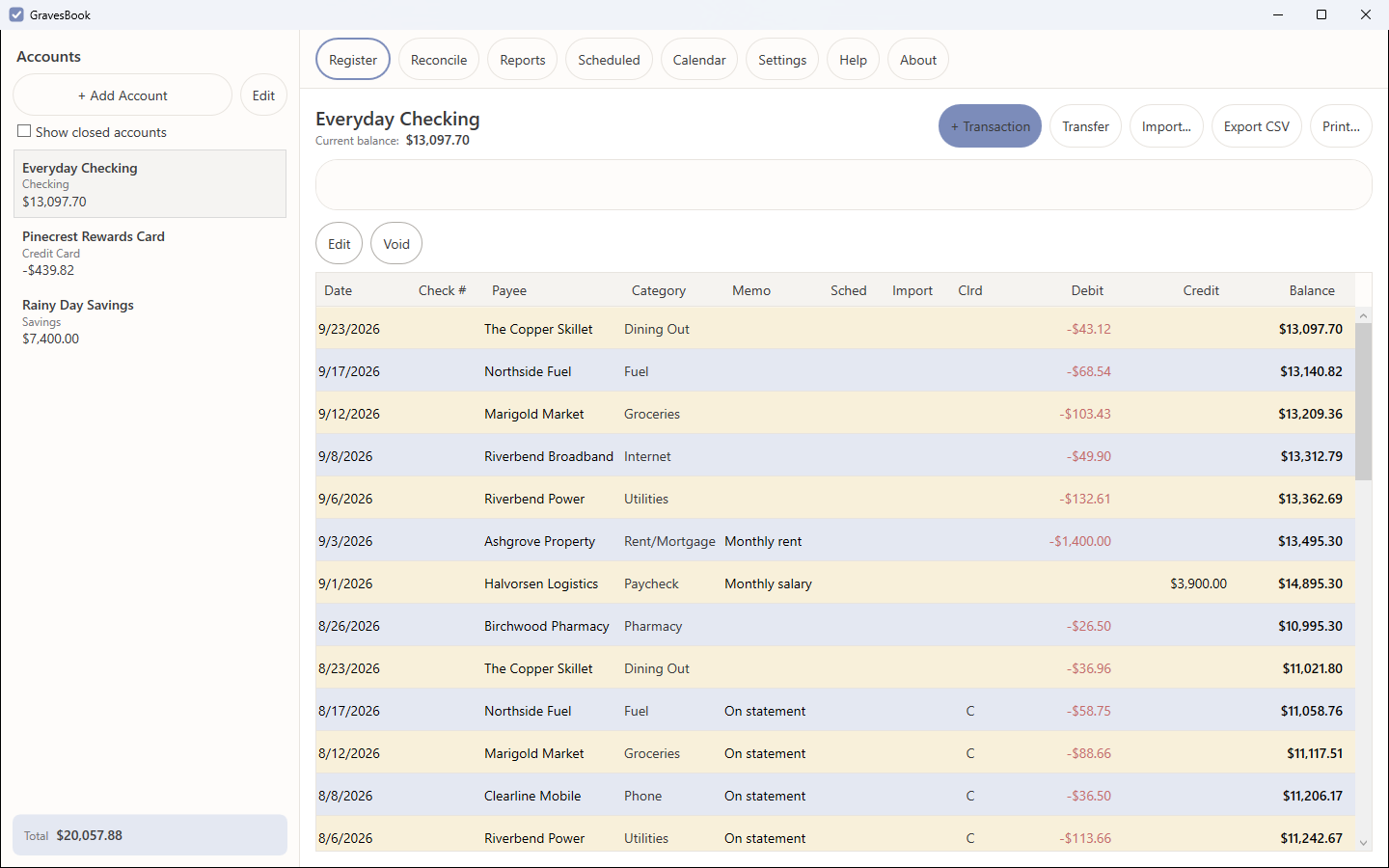
- Add a transaction with the “+ Transaction” button: date, payee, an optional check number, a payment (money out) or deposit (money in) amount, a category, and an optional memo. As you type a payee, GravesBook suggests names you’ve used before and fills in the category you used with that payee last time; you can change it.
- Edit a transaction by double-clicking its row, or select it and click Edit.
- Split a transaction across more than one category by checking “Split into multiple categories” — add as many lines as you need. GravesBook won’t let you save a split that doesn’t add up exactly to the transaction’s total; the “Remaining to allocate” line tells you how far off you are.
- Transfers between two of your own accounts use the “Transfer” button instead of a regular transaction. This creates one linked entry in each account, so a transfer never shows up as income or an expense in your reports.
- Void a transaction (from the buttons above the grid) rather than deleting it if you want to keep its check number in the sequence — voiding zeroes the amount and marks it, without removing the row.
- Search the register by payee, memo, or check number using the search box above the grid.
- Import... brings in transactions from a spreadsheet — see Importing from Excel.
The three indicator columns: Sched marks a transaction that a schedule posted for you (see Scheduled transactions); Import marks one that came from a spreadsheet import; Clrd shows the cleared status — blank, C for cleared, or R for reconciled. You can set a transaction to Cleared yourself in its edit dialog when you see it on your bank’s website before the statement arrives; the Reconcile screen uses that as a head start.
Reconciled transactions are partly locked
Once a transaction has been through a finished reconciliation (status R), the fields the bank has already confirmed — its date, its amount, its account and its cleared status — can no longer be changed, and it can’t be voided or deleted. The fields that are your own bookkeeping — category, splits, memo, payee and check number — stay editable, so you can still fix a miscategorized purchase months later. The edit dialog says which is which.
If a reconciled transaction’s date or amount really is wrong, the cleanest fix is a correcting transaction for the difference, the way a bookkeeper would; it clears on the next statement and the old statement still ties. If you do need to change the original, open that statement from the history at the bottom of the Reconcile screen, select the transaction, and click “Unreconcile Selected”. It goes back to Cleared and unlocks. Bear in mind the statement’s recorded balances don’t change — if you then alter the amount, that statement will no longer agree with the bank, and the difference will show up in your next reconciliation.
4. Categories
Every transaction (or split line) is classified by a category — Income, Expense, or Transfer. GravesBook seeds a starter set of everyday categories the first time you create a database (Housing, Food, Transportation, and so on, each with a few sub-categories), and you’re free to add and delete your own from Settings → Categories.
A category that is still in use — by any transaction, split, or scheduled transaction — can’t be deleted; GravesBook tells you what’s using it so you can re-categorize those first. Deleting a category that has sub-categories re-parents them one level up rather than deleting them too. The Other category is where imports land when GravesBook can’t tell what a payee is; it’s created for you if it’s missing.
5. Reconciling against a bank statement
This is the one place GravesBook asks you to be a little careful, because it’s checking your work against the bank’s. Two records of the same cash — your register and the bank’s statement — almost never agree perfectly on any given day, for two different reasons:
- Timing. A check you wrote hasn’t been cashed yet, or a deposit hasn’t shown up on the statement yet. These resolve themselves on their own — you don’t do anything about them except leave them unchecked.
- Things the bank knew before you did. A service fee, interest earned, an automatic payment, an NSF charge. These are real events your register is missing, and they need a new transaction — not a fudge.
To reconcile an account:
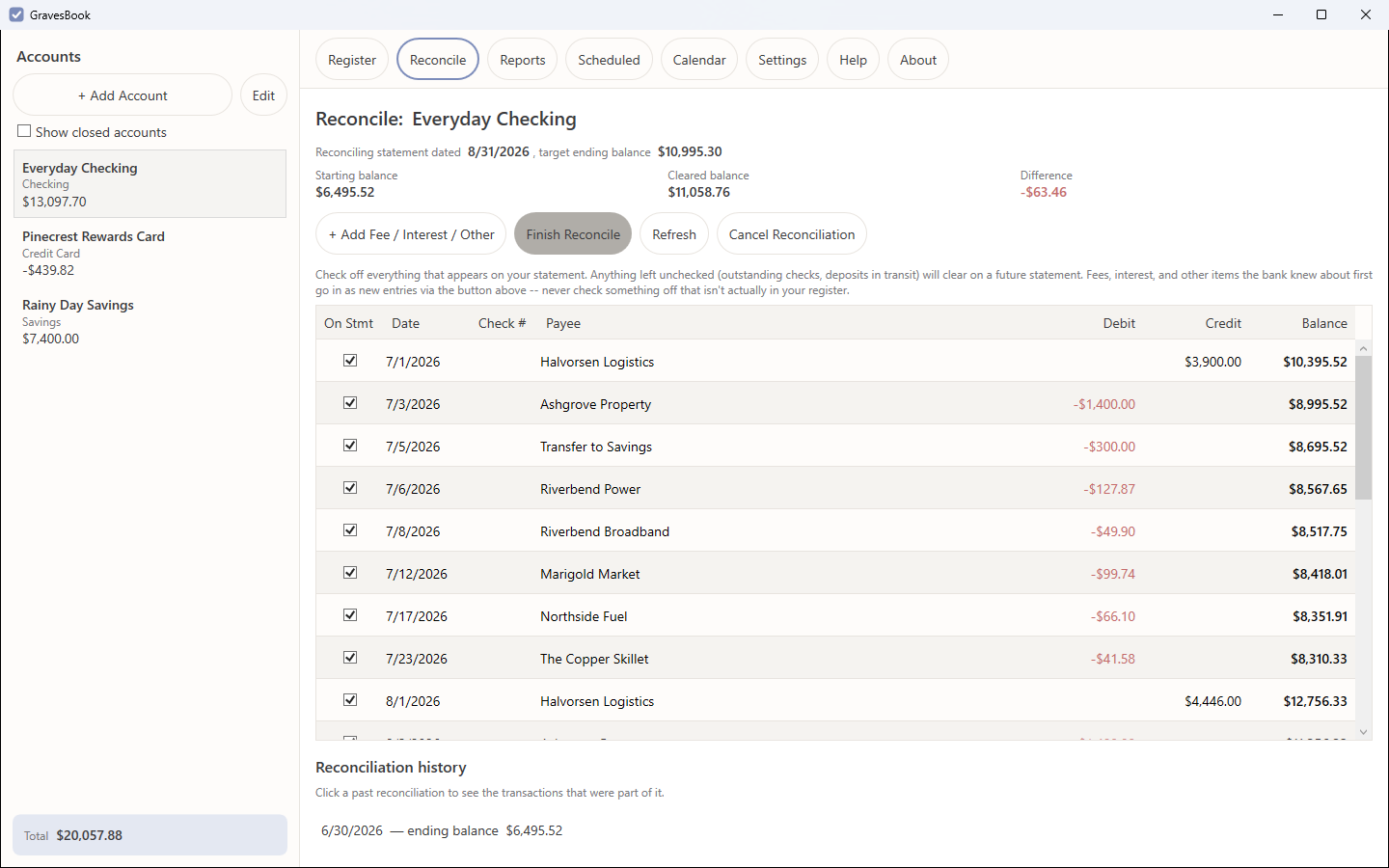
- Open the Reconcile screen for that account. The statement date is pre-filled with the last day of the month after your most recent finished reconciliation; change it if your bank’s cycle is different. Enter the statement’s ending balance — GravesBook won’t start with $0.00, because that is never what a statement says.
- Click Start Reconcile. Every transaction you’d already marked Cleared is ticked for you. Check off everything else that actually appears on the statement. The columns match the register — Debit, Credit, and the running Balance — so you can go down the statement and the screen side by side. The unchecked ones (outstanding checks, deposits in transit) are left alone; they’ll clear on a future statement.
- If the statement includes something your register doesn’t have yet — a fee, interest, an automatic payment — use “+ Add Fee / Interest / Other” to enter it as a real transaction, right from the Reconcile screen. It’s added and checked off in one step.
- Watch the “Cleared balance” and “Difference” numbers update live as you check things off. When the difference reaches zero, “Finish Reconcile” becomes available.
- Finishing marks every checked-off transaction Reconciled (R in the register) and records the statement in the account’s reconciliation history at the bottom of the screen. Click a past statement there to see exactly which transactions were on it — and, if you must, to un-reconcile one of them (see Reconciled transactions are partly locked above).
You don’t have to finish in one sitting. Close GravesBook with a reconciliation open and your checkmarks are exactly where you left them when you come back. If you started against the wrong statement — wrong month, wrong ending balance — Cancel Reconciliation throws away just that attempt; nothing you’d marked Cleared is touched, and you can start again.
GravesBook will not let you finish a reconciliation that doesn’t balance to the exact cent. If you can’t get it to zero, double-check for a transaction you’re missing or one you entered with the wrong amount, rather than force-checking something to make the numbers match — that would just move the error into your reconciled history, where it’s harder to find later. A common cause: transactions from the last days of the previous month that the bank posted on this statement. Check them off here; they belong to this statement, whatever date you wrote them.
6. Scheduled transactions
For anything that repeats — rent, a car payment, a paycheck, a subscription — set it up once on the Scheduled screen with “+ New Schedule”: account, payee, amount (or splits), category, memo, and how often: daily, weekly, every two weeks, monthly, twice a month on two fixed days, quarterly, yearly, or every N days/weeks/months. A schedule can run forever, until a date, or for a set number of occurrences. A schedule anchored to the 29th, 30th or 31st lands on the last day of any shorter month rather than skipping it.
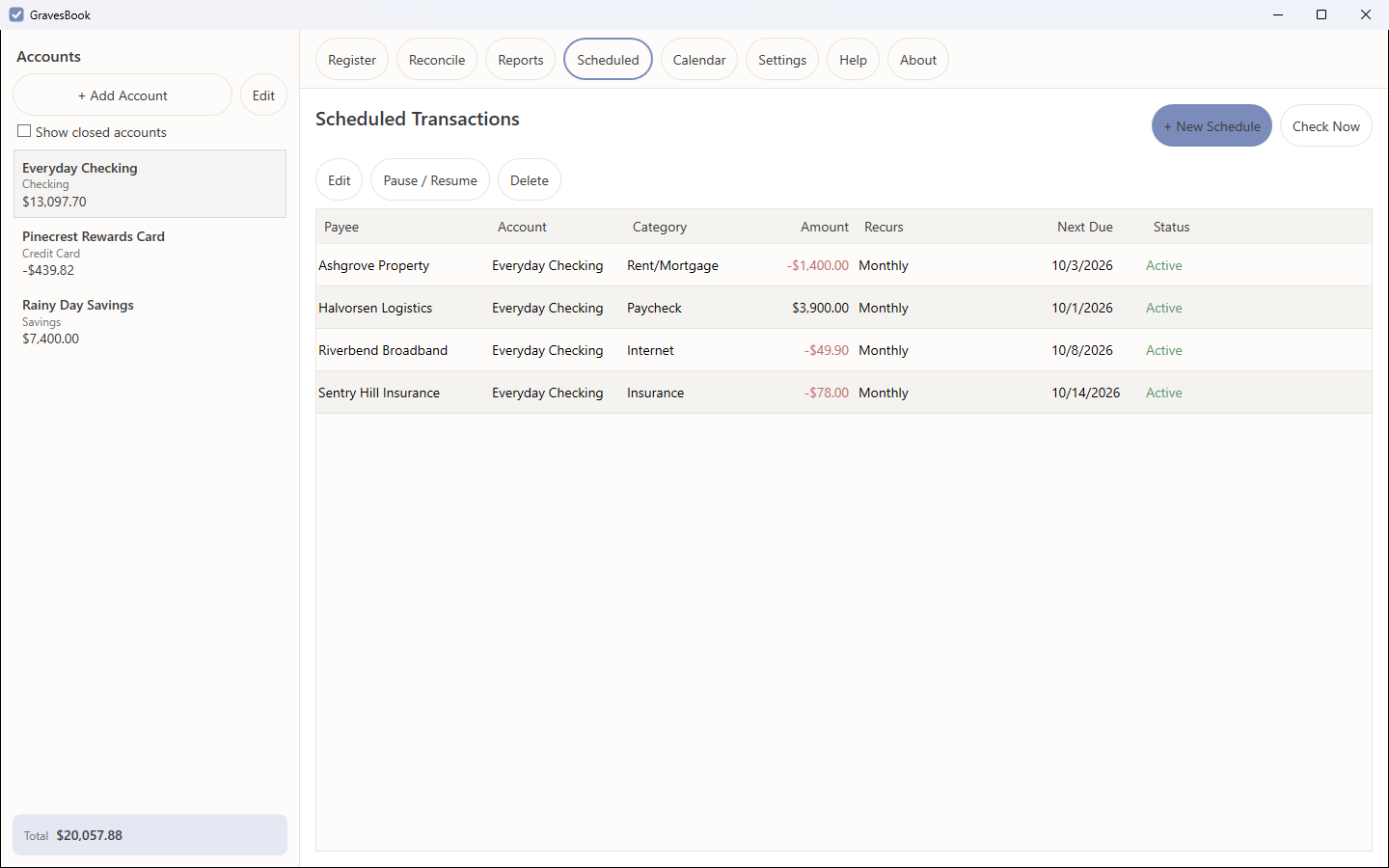
Each time GravesBook starts (or when you click Check Now), it posts every occurrence that has come due since the last check as a real transaction in the register, marked in the Sched column. Leave the app closed for three weeks and you get exactly the occurrences that fell in those three weeks — never a duplicate, never a missed one. Posted transactions are ordinary transactions from then on: edit them, reconcile them, void them like any other.
Pause / Resume stops a schedule from posting without deleting it. Editing a schedule changes what it posts from now on; transactions it has already posted are left as they are. To change one occurrence — this month’s electric bill was higher — edit that transaction in the register, not the schedule.
7. Calendar
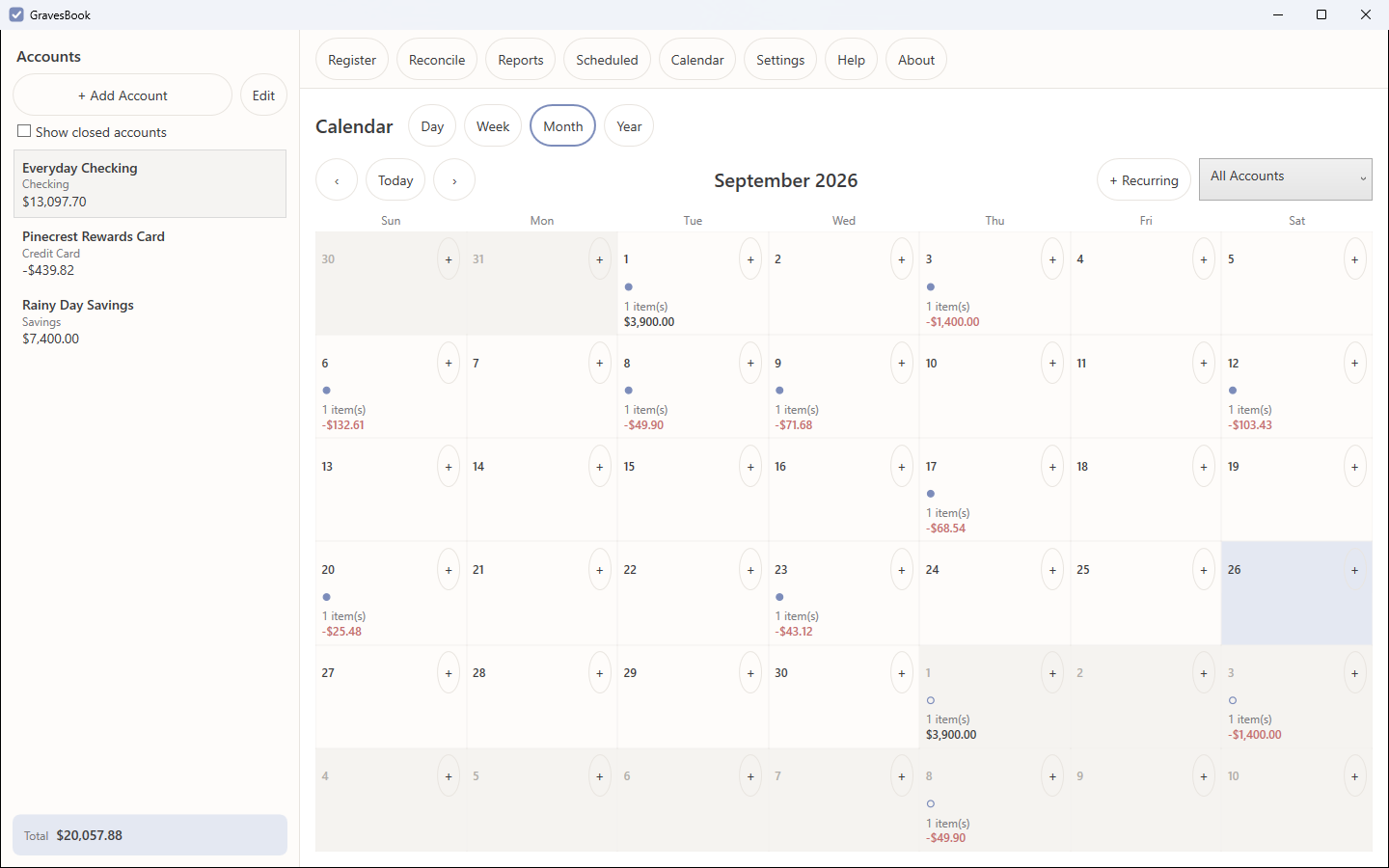
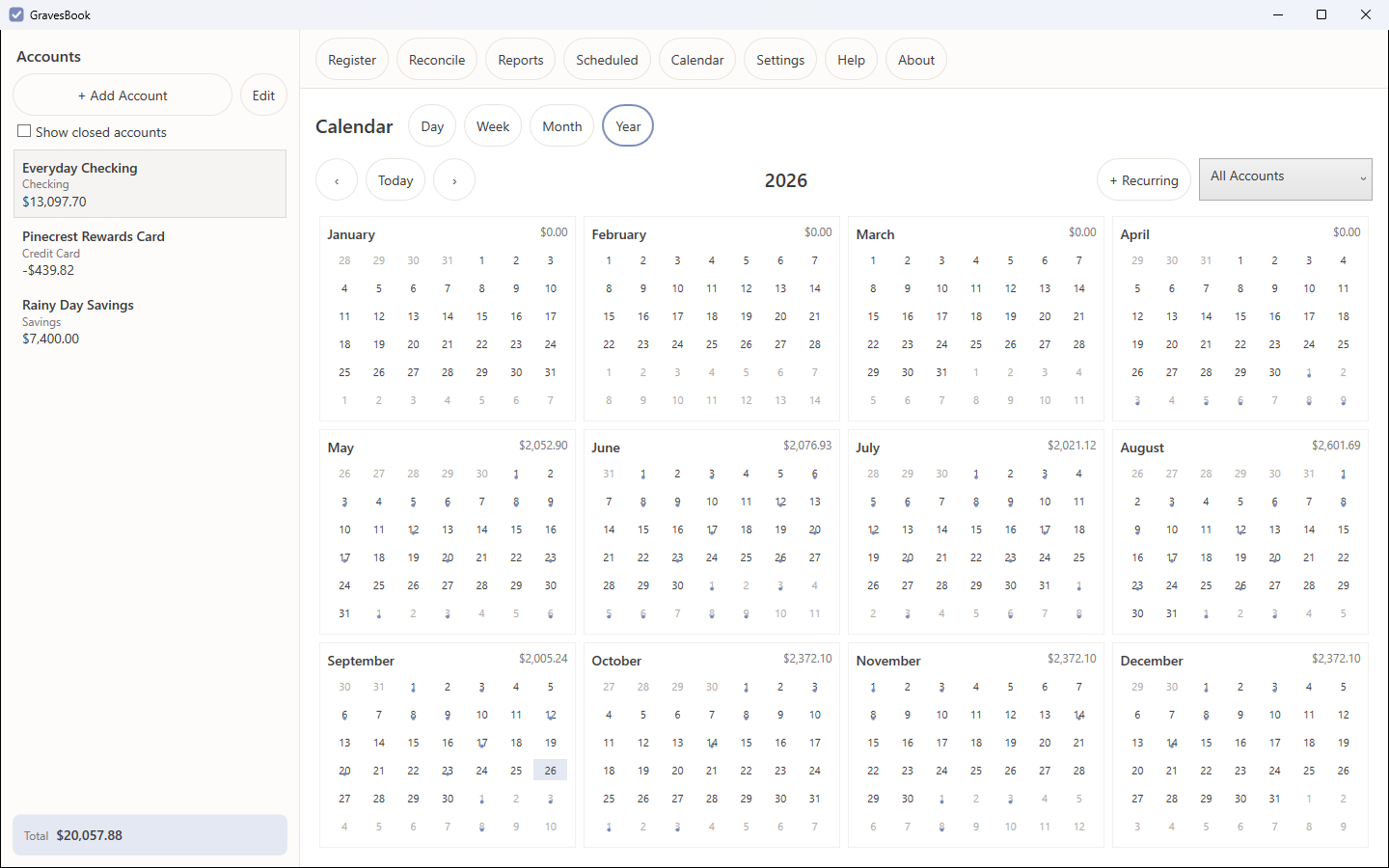
The Calendar shows your money by date, across all accounts or one you pick: real register transactions as solid markers, and the upcoming occurrences of your active schedules as hollow ones, so you can see what’s coming before it posts. Switch between Day (the full detail for one date), Week (seven columns with payee and amount), Month (a count and total per day) and Year (twelve small months with a total each; click a day or a month to drill in). Today brings you back. The “+” on a day cell (and “+ Recurring”) starts a new schedule from that date.
8. Importing from Excel
Import... on the register loads transactions from an .xlsx file into the account you choose. The first row must be a header row containing Date, Amount, and Payee (or Label), in any order and any capitalization; other columns are ignored. Dates can be real Excel dates or text in the usual formats; amounts can carry currency symbols and thousands separators, and a value in parentheses is treated as negative.
GravesBook decides the category for each row from your own history: if that payee already exists in the register, the category you’ve used with it most often wins. If the payee is new, or your history is split evenly between two categories, the row goes to Other and is flagged for review so you can fix it by hand. The spreadsheet’s own category column, if it has one, is never used.
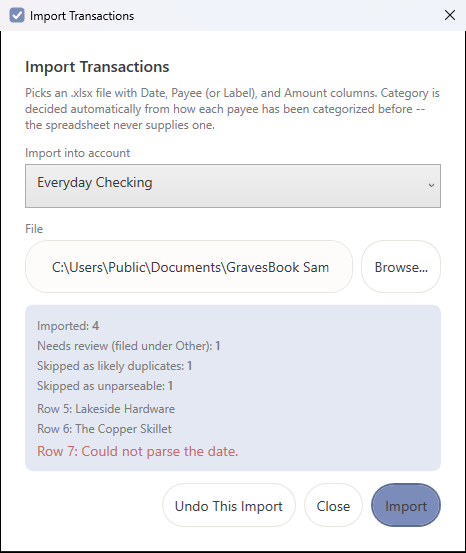
A row whose date, payee and amount exactly match a transaction already in that account is skipped as a duplicate, so importing the same file twice does no harm. (Two genuinely separate transactions with the same date, payee and amount would be caught by this rule too — that’s the accepted trade-off.) A row that can’t be read is skipped and listed by row number; it never stops the rest of the file. The summary afterwards tells you how many rows were imported, how many need review, how many were skipped as duplicates, and which couldn’t be read. Undo removes everything that import created, as long as none of it has been reconciled since.
9. Reports
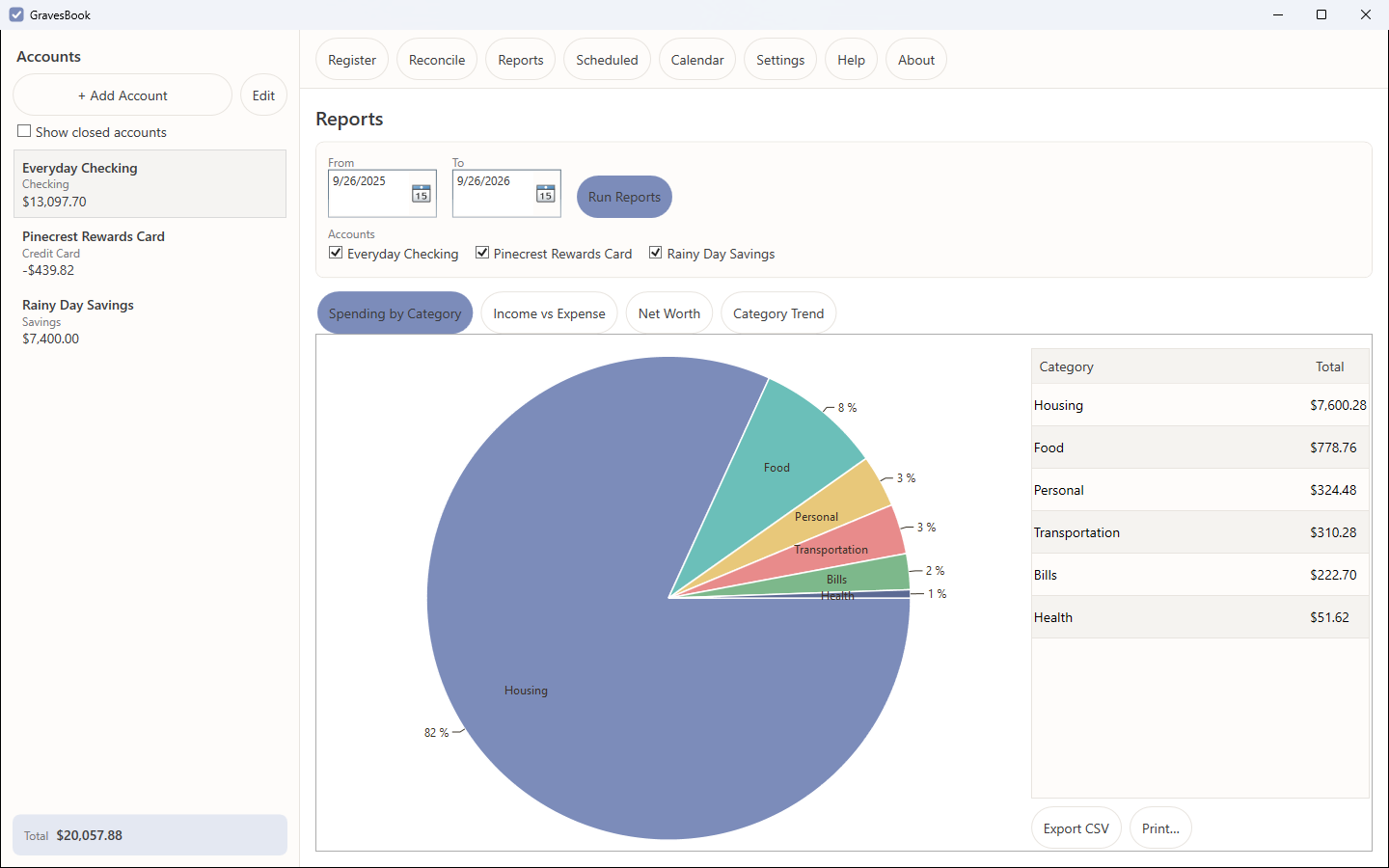
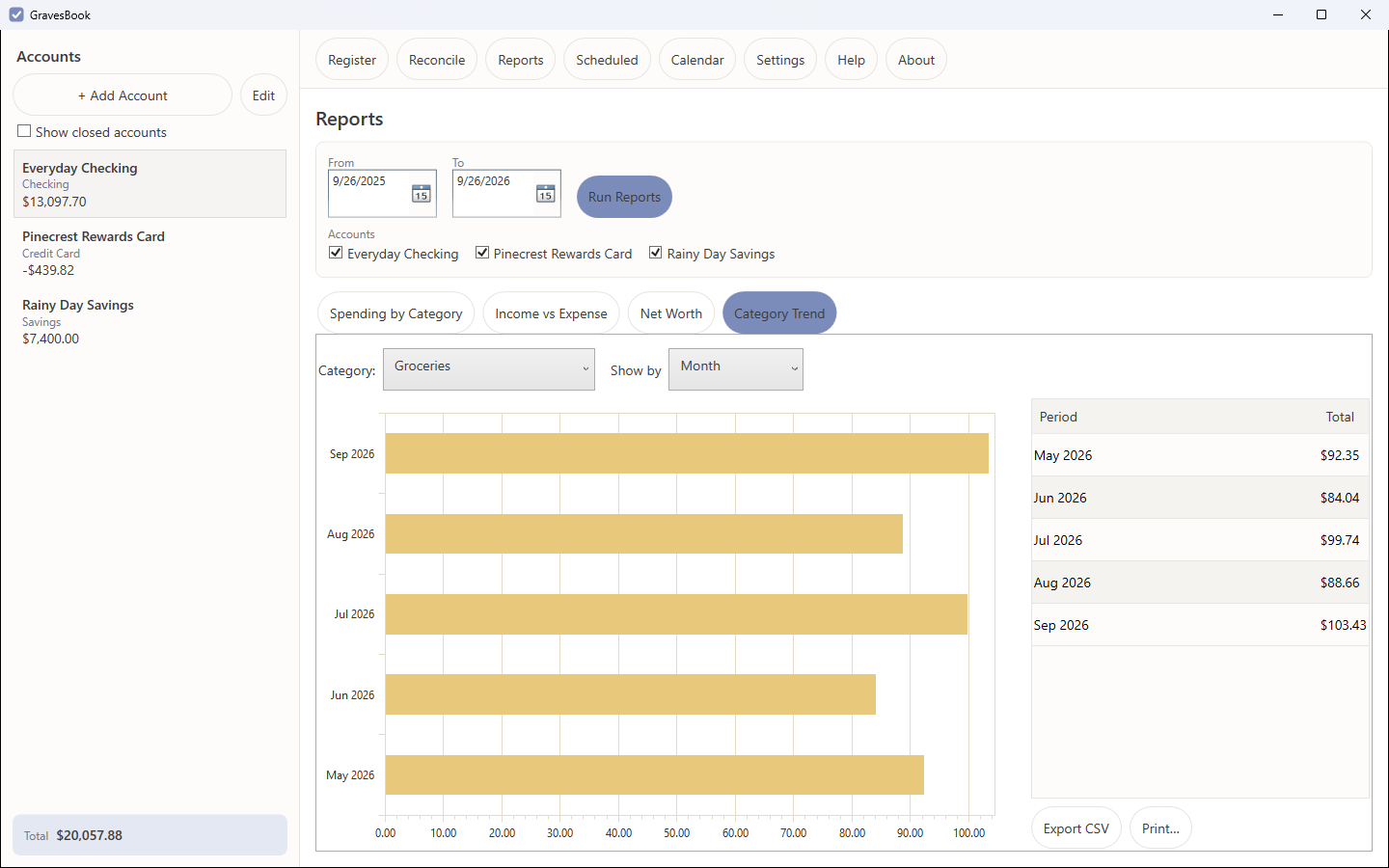
The Reports screen covers four views, each filterable by account and date range, with the underlying numbers shown in a table next to the chart and an “Export CSV” button for each:
- Spending by Category — a pie chart of your expenses, rolled up to top-level categories.
- Income vs. Expense — a bar chart by month (transfers are never counted as either).
- Net Worth — a line chart of your combined balance across the accounts you select, over time.
- Category Trend — how a single category’s spending has moved month to month.
Exported CSV files are plain text, not encrypted — keep that in mind when choosing where to save them.
10. Exporting and printing
Export CSV on the register saves the transactions it is showing to a CSV file you can open in Excel or any other spreadsheet. If you have typed something in the search box, only the matching transactions are exported. Rows are written in date order (the order the running balance is worked out in), whatever column the register is sorted by. The columns are Date, Check #, Payee, Category, Memo, Cleared, Debit, Credit and Balance. Dates are written as year-month-day (2026-09-26) and amounts as plain numbers without thousands separators. The file uses the list separator and decimal symbol from your Windows region settings, the same ones Excel uses to open it, so double-clicking the file opens it in columns wherever you are: in the US it is comma-separated with 1234.56, in Germany it is separated by semicolons with 1234,56. The Reports screen’s CSV files work the same way.
Print... on the register prints it as a bordered table, like a printed spreadsheet. First you choose:
- From and To — the dates to print. They start out covering everything the register is showing, and the search box still applies.
- Orientation — Landscape to begin with, since the register has nine columns.
- Print row shading — off to begin with. Off prints black text on white with cell borders only, which saves ink; negative amounts still carry their minus sign and sit in the Debit column, so nothing depends on color. On adds the same alternating row bands the screen uses.
Preview... then shows every page exactly as it will print, so you can check it before using any paper. Print... in the preview opens the Windows print dialog, where you pick the printer and the number of copies. Each page is headed with the account name, the dates printed and the date it was printed, the column headings repeat at the top of every page, long text wraps inside its cell rather than being cut off, a transaction is never split across two pages, and each page is numbered “Page 1 of 3”.
Each report on the Reports screen has a Print... button beside its Export CSV button. A printed report has the report’s name, its dates (and, for Category Trend, its category), the chart, and then the report’s table in the same bordered style. Its options are Orientation (Portrait to begin with), Print in color (off to begin with: the table is unshaded and the chart is printed in shades of gray) and Include chart (on to begin with). The table carries every number, so leaving the chart out to save ink loses nothing.
GravesBook remembers these choices until you close it. Printed pages, like exported CSV files, are outside GravesBook’s encryption: look after them the way you would a bank statement.
11. Settings
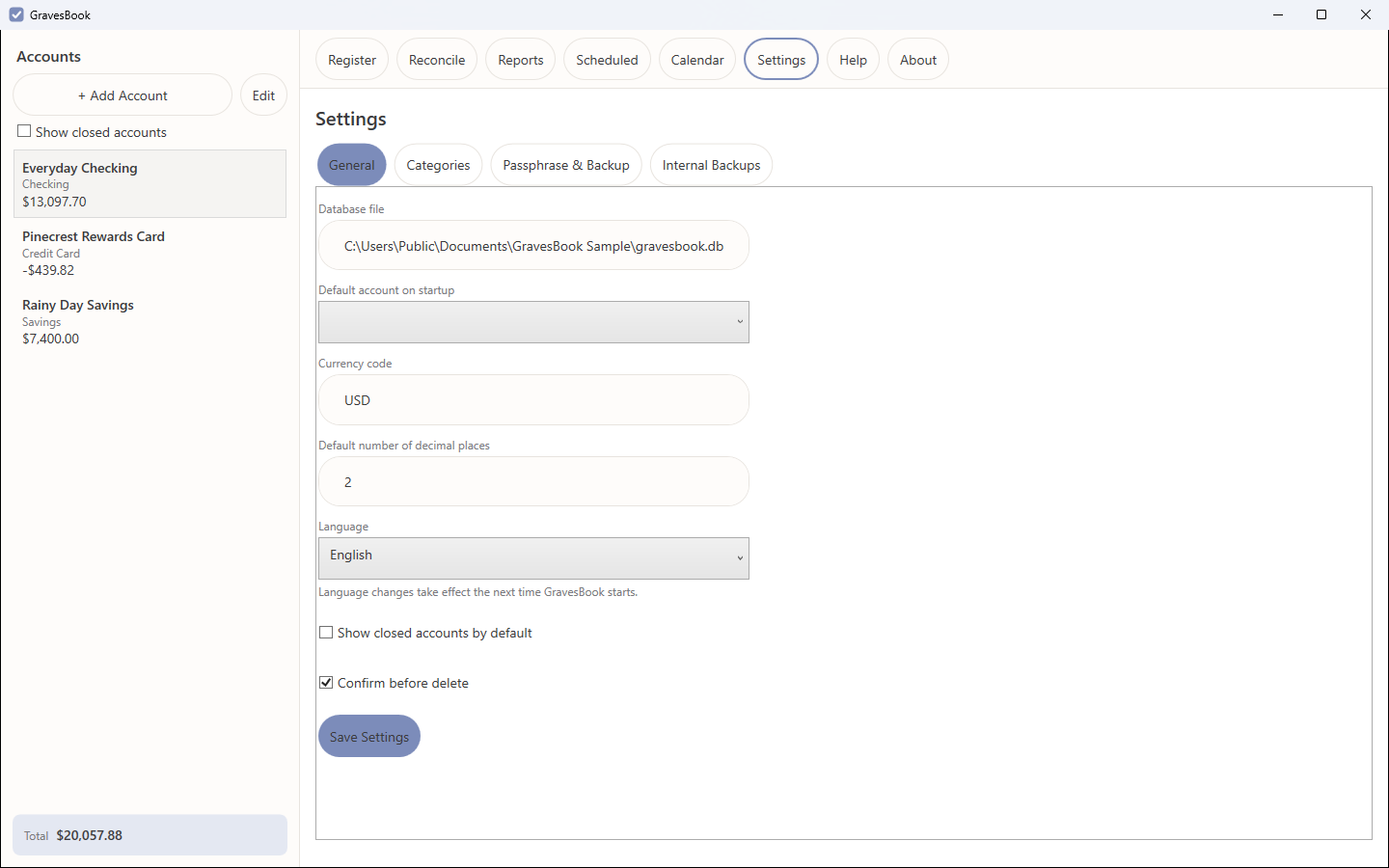
- General: the default account to open on startup, whether closed accounts show by default, whether GravesBook asks for confirmation before deleting things, and the currency code and decimal places used for display.
- Categories: add and delete categories (see Categories for the in-use rule).
- Passphrase & Backup: change your database passphrase; make or restore a portable backup copy of the database.
- Internal Backups: one-click backups kept in a folder GravesBook manages, protected by a recovery passphrase.
12. Backups
You have two kinds, and they suit different jobs.
Portable Backup (Settings → Passphrase & Backup → “Back Up Now...”) writes a copy of your database file wherever you point it — an external drive, a synced folder. The copy is encrypted with the same passphrase as your live database and is a complete, standalone checkbook: it opens on any machine with that passphrase. “Restore From File...” replaces your live database with a backup file after confirming that file’s passphrase opens it. GravesBook never copies anything anywhere on its own or over a network; where the copies go, and how often, is up to you.
Internal Backups (Settings → Internal Backups → “Backup Now”) is the frictionless kind for day-to-day use: one click, no passphrase prompt, a dated .gbbak file in the folder shown on that tab. Before your first one you set a recovery passphrase — a second passphrase, separate from the database one, with the strength rules shown on screen. On this machine the backups open silently; on any other machine (or after a Windows reinstall) the recovery passphrase is the only thing that opens them, and GravesBook can’t recover it either. “Restore Selected Backup” puts the chosen one back in place; restart GravesBook afterwards.
There is no password reset for either passphrase. If you lose your database passphrase, backup or not, that database is gone. This is not a bug to be reported — it’s the whole point of encrypting the file in the first place.
13. Moving GravesBook to another machine
Everything GravesBook knows is in one file, and that file is encrypted with your passphrase, so moving is copying. Keep these in your password manager:
- Your database passphrase. Always required. This is the one that unlocks the file.
- Your internal-backup recovery passphrase — only if you use Internal Backups. It is the one thing that can open those backups on a machine other than the one that made them.
The simple way (recommended): make a Portable Backup to a drive or synced folder. On the new machine, install GravesBook, click “Choose...” on the unlock screen, pick that file, and enter your database passphrase. Done — the copy is your full checkbook. (Copying gravesbook.db itself from %LocalAppData%\GravesBook works exactly the same way.)
Using an internal backup instead: copy the whole Backups folder shown on the Internal Backups tab — it must include bmk.wrap alongside the .gbbak files — into the same place on the new machine. In Settings → Internal Backups, select the backup, enter your recovery passphrase, and restore. GravesBook re-keys the backup vault to the new machine at that point, so later backups there need no passphrase again. Then restart and unlock with your database passphrase.
14. If something goes wrong
Every change is saved the moment you make it, so an error can’t lose work you’ve already entered. If GravesBook hits a problem it didn’t expect, it shows you the error and keeps running, and writes the technical detail to last-error.txt in the GravesBook folder under %LocalAppData% on this machine — nowhere else. That file is what to send to support (support@gravesware.com) if you report a problem. It contains the error and where in the program it happened; it never contains your passphrase or your financial data.
15. Languages and translations
GravesBook shows its screens in 55 languages. Unless you choose one under Settings → General → Language, it follows your Windows display language. A new choice takes effect the next time GravesBook starts. In Arabic, Persian, Urdu, Sindhi and Uyghur the whole window reads from right to left, as those languages are written, and so do printouts.
Amounts and dates are written the way your language writes them: the language you chose, or your Windows regional format when GravesBook follows Windows. Digits are always 0 to 9.
The translations were made with care, but not every one has been read by a native speaker yet. Suggestions for translation changes are welcome! If a word is wrong, awkward or cut off, email support@gravesware.com and say which language, where you saw it (the screen’s name, or a screenshot) and what it should say.